Import Subscribers
The CSV import tool lets you add many subscribers at once.
Before you upload
Save your spreadsheet as a .csv file.
Use these columns:
notification_preference,email,phone,first_name,last_name
Column rules
notification_preferencemust beemailortext_messageemailis required for email subscribersphoneis required for text-message subscribersfirst_nameis optionallast_nameis optional
CSV files must be under 2 MB.
Step 1: Open the import page
Go to Subscribers and click Import subscribers from CSV.
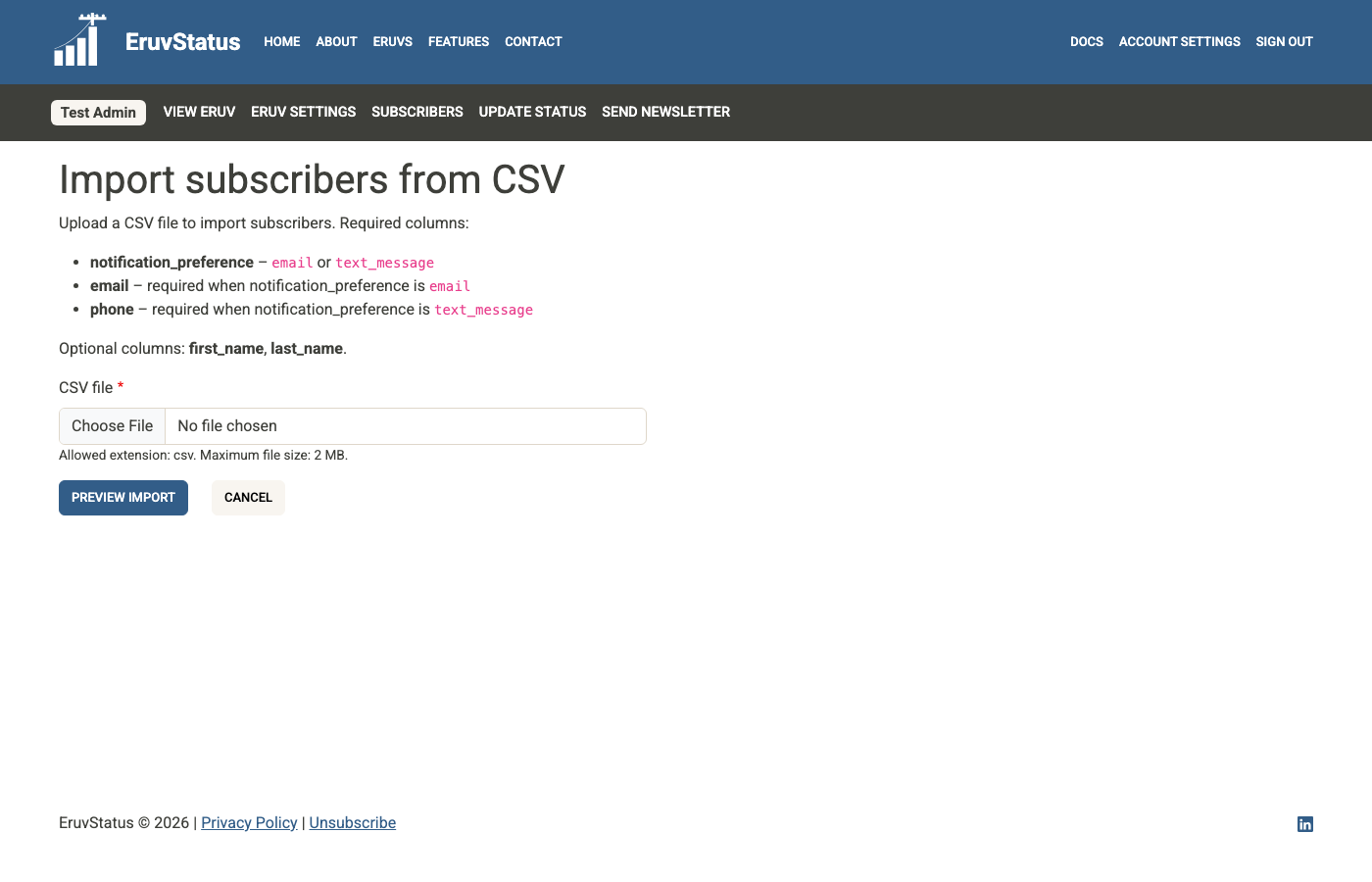
Step 2: Upload the file
Choose your file and click Preview import.
Nothing is imported yet at this stage.
Step 3: Review the preview
EruvStatus checks every row and splits the results into two sections:
Rows with errors (will be skipped)Rows to import
Common reasons a row is rejected:
- missing or invalid email address
- missing or invalid phone number
- duplicate email or phone already subscribed to your eruv
- duplicate email or phone repeated in the same file
- invalid
notification_preferencevalue
If needed, click Upload a different file, correct the CSV, and try again.
Step 4: Confirm the import
When the preview looks correct, click Import X subscribers.
You will return to Subscribers with a confirmation message showing how many subscribers were added.
Important notes
- Imported subscribers are added directly
- They do not receive a signup confirmation email or text as part of the import
- Only valid rows are imported
- Review skipped rows before confirming if you want a record of them