Newsletters
Use Send Newsletter when you want to send a message to subscribers without changing the weekly eruv status.
This is useful for announcements, fundraising, reminders, and other community updates.
Main layout
The newsletter form has two side-by-side areas on larger screens and a stacked layout on smaller screens:
- an
Emailtab - a
Text Messagetab - a
Previewpanel beside the message editor - draft and reuse tools for past newsletters
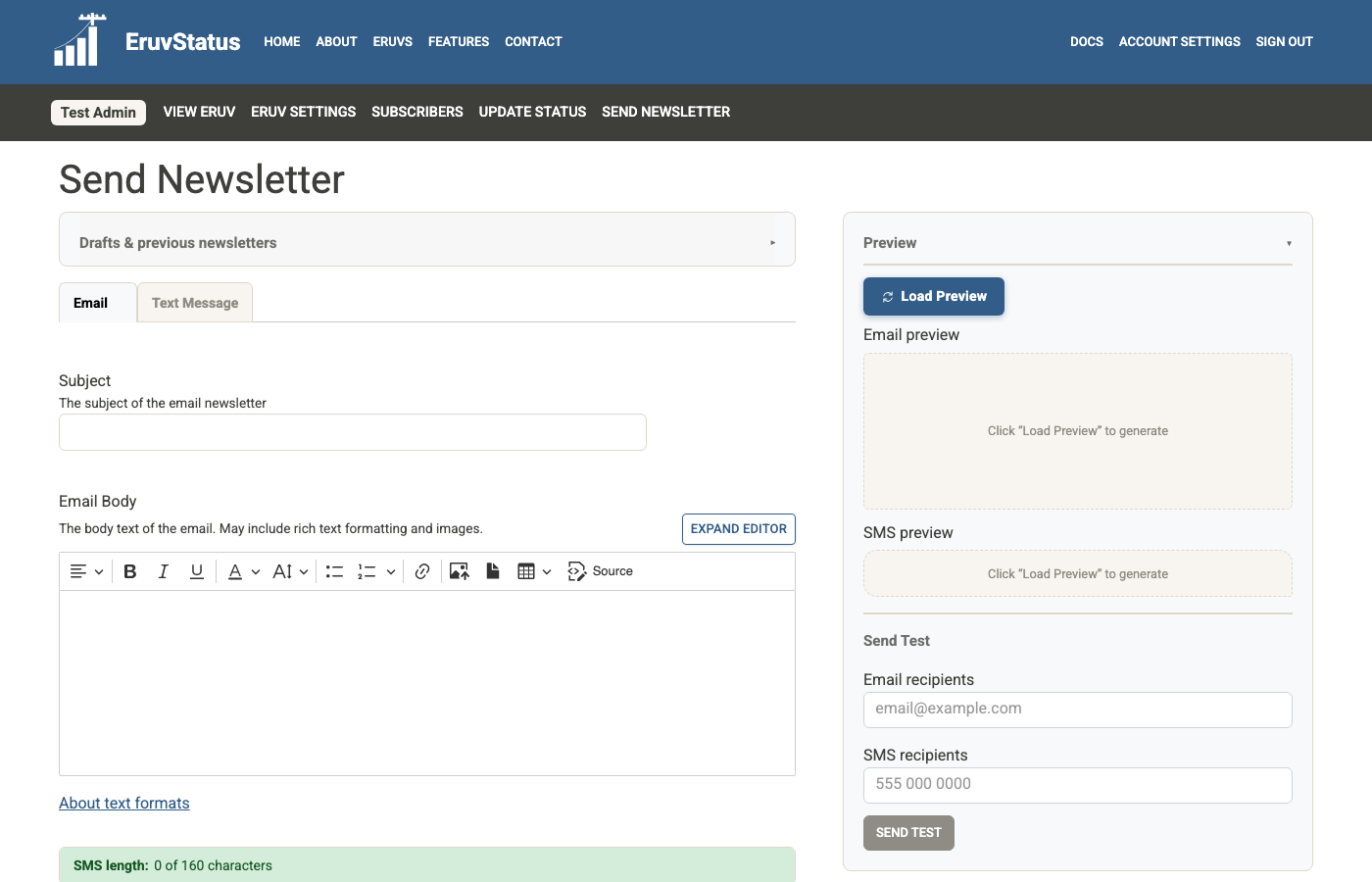
Email tab
The email side includes:
SubjectEmail Body
If you fill in the email body, the subject is required. If you fill in the subject, the body is also required.
Text Message tab
Use this for the SMS version of your newsletter.
Keep SMS messages brief. The form shows an SMS length counter to help you stay within a practical text-message length.
Preview and send test
The Preview panel lets you:
- load a preview of the email and SMS
- send a test email
- send a test SMS
You can enter multiple email addresses or phone numbers separated by commas.
Schedule for later
Use Schedule Newsletter when the message should go out later instead of right away.
The Schedule section lets you choose a future date and time.
- the time uses your user account time zone
- the form shows a
changelink next to the time zone if you need to update it - scheduled time selection uses whole minutes
After you click Schedule Newsletter, the newsletter is saved with a scheduled send time and will be delivered automatically at that time.
If another newsletter is already scheduled for your eruv, the form shows a warning with the scheduled date and time.
Drafts and reusing past content
On a new newsletter, you may also see Drafts & previous newsletters.
This lets you:
- load a saved draft and keep editing it
- load a scheduled newsletter and adjust its send time or content
- load content from a previous sent newsletter
- clear the form and start fresh
When editing a draft, you can also use:
Save DraftDelete DraftNew Newsletter
Send the newsletter
When you are ready, click Send Newsletter.
The newsletter is queued to your subscribers. After sending, EruvStatus returns you to a fresh newsletter form so you can start the next message.
If you no longer want to wait for a scheduled send time, open that scheduled newsletter from Drafts & previous newsletters, make any changes you need, and click Send Newsletter to send it immediately instead.
Best practices
- Always use
Load Previewbefore sending - Send yourself a test email and test SMS first
- Keep SMS short even if the email version is much longer
- Save a draft if you are not ready to send immediately
- Double-check your account time zone before scheduling