Update Status
Updating the status is the main weekly task for most eruv admins. This is the page that marks the eruv as UP, DOWN, or PENDING and sends the message to your subscribers.
Open the form
Use the Update Status link in the Eruv admin menu.
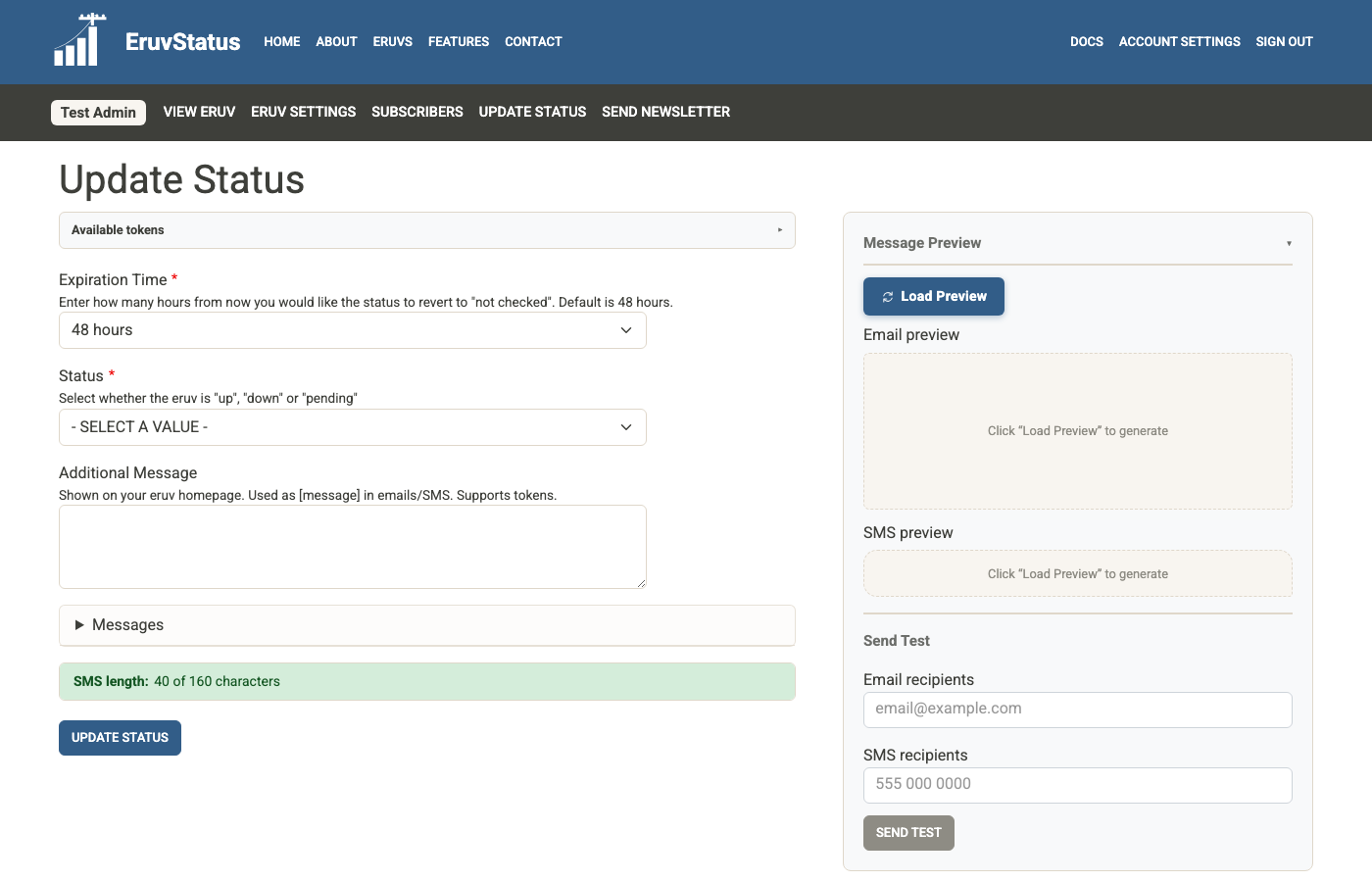
Main fields
Status
Choose one of the status options:
UPDOWNPENDING
Use PENDING when the final status is not ready yet but you want to alert subscribers.
Expiration Time
The status expires automatically after the selected number of hours. Once it expires, visitors will see NOT CHECKED on the public eruv page.
Additional Message
Use this for the week’s extra note, such as:
Good Shabbos- candle-lighting time
- the parsha
- a short repair or boundary note
This field is important because it is also used in the public status display, the embedded status widget, and message templates that include the [message] token.
Messages
The Messages area contains the full email and SMS content that will be sent for this update.
By default, these fields are pre-filled from your Eruv Settings message templates. You can still change them for one specific week without changing the saved defaults.
If you choose PENDING, the form uses separate pending-message fields so you can write a custom temporary alert.
Preview and test before sending
The Message Preview panel lets you:
- load a live preview of the email and SMS
- enter one or more test email recipients
- enter one or more test SMS recipients
- send test messages before sending to everyone
Separate multiple test recipients with commas.
Available tokens
You can use these tokens in your templates and message fields:
[date][title][status][message][candles][havdalah][parsha]
Example SMS template:
[date] - The [title] eruv is [status]. [message]
After you click Update Status
You will see a confirmation message and be returned to the site. Email and SMS notifications are queued, so delivery may take a little time on busy weeks.
Tips
- Use
Load Previewevery week if you rely on tokens like[candles]or[parsha] - Send yourself a test email and test SMS before a major holiday or special message
- Put critical public-facing details in
Additional Message, not only in the longer email body